

To delete a user account in Windows 10, you must use the system settings application. To do this, open the start menu and click on the cogwheel.
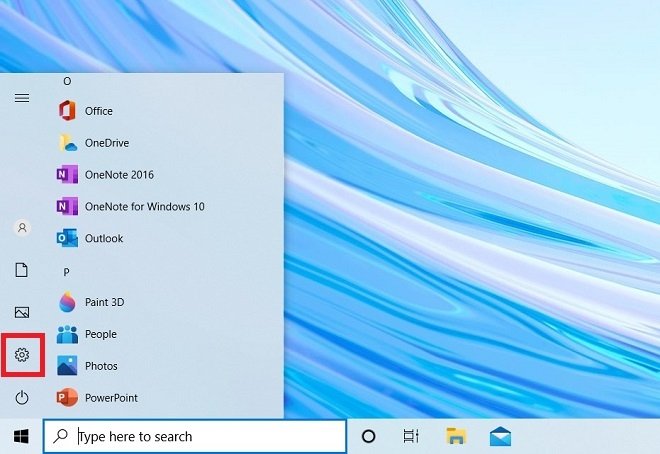 Open the Windows 10 configuration
Access the Accounts section to see the options related to user accounts.
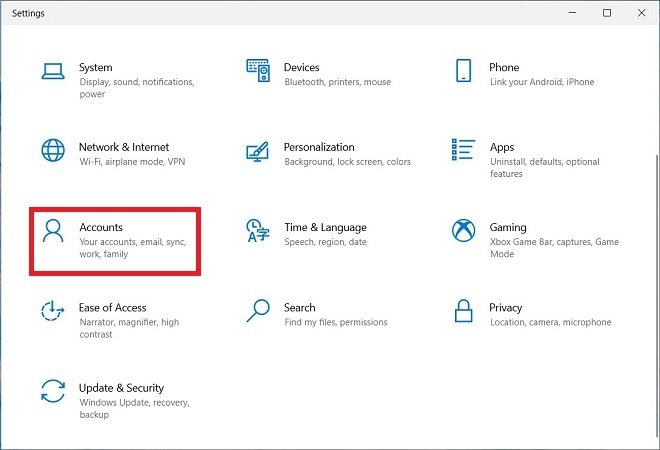 Account and family section
On the right side of the window, choose the Family & other users section.
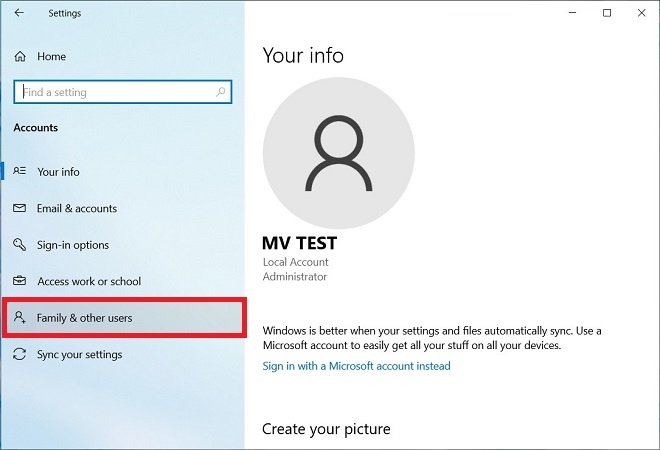 Other users section
Select a user account and click on the Remove button to start deleting the account.
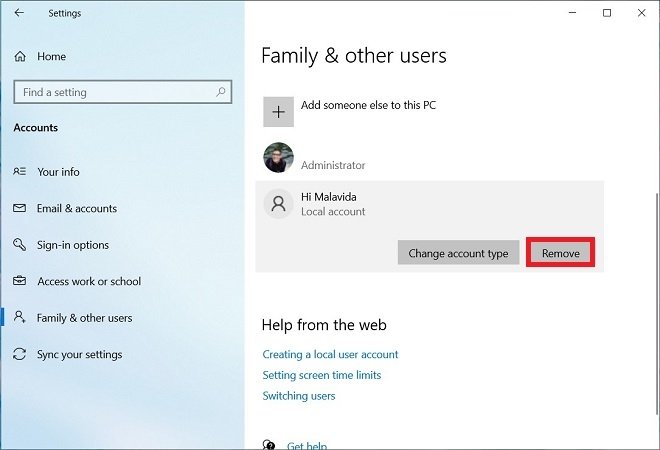 Remove an account
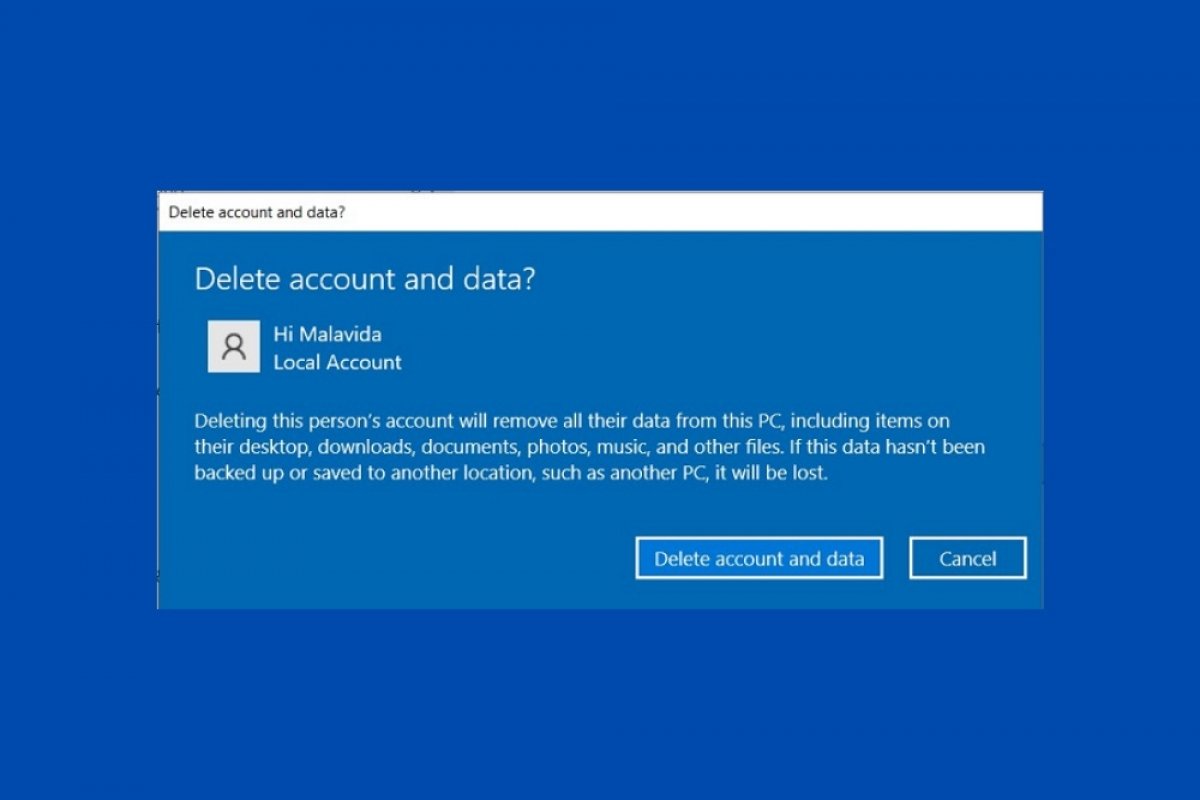
In the pop-up window, confirm that you want to delete the account with the Delete account and data button.
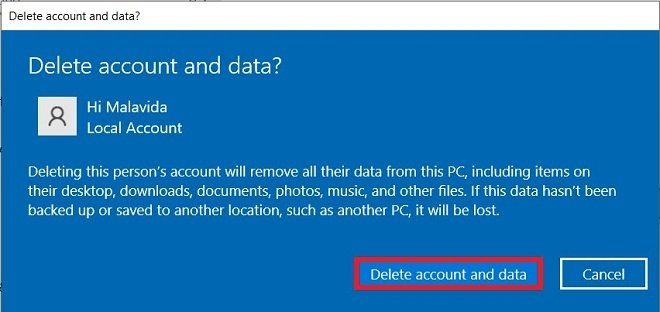 Confirm the removal of an account
This process will delete all user data. Therefore, you should make sure that the account owner has backed up any photos, documents, downloads, or other files before you confirm.
However, in Windows 10, there is still an alternative method of preserving the information of others. To access this method, you must use the control panel. In this case, use the Windows search and type control panel. Select the first result.
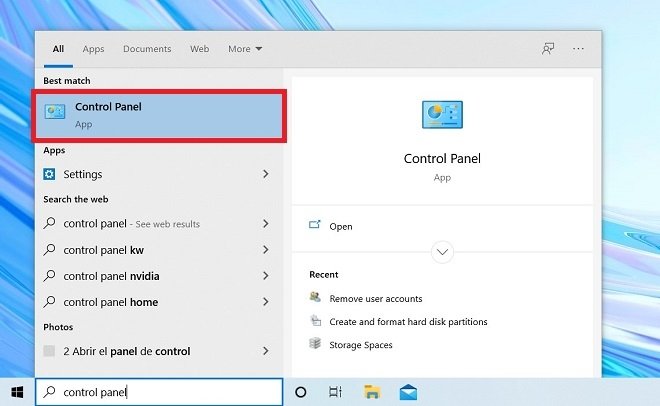 Open the control panel
Open the User Accounts section.
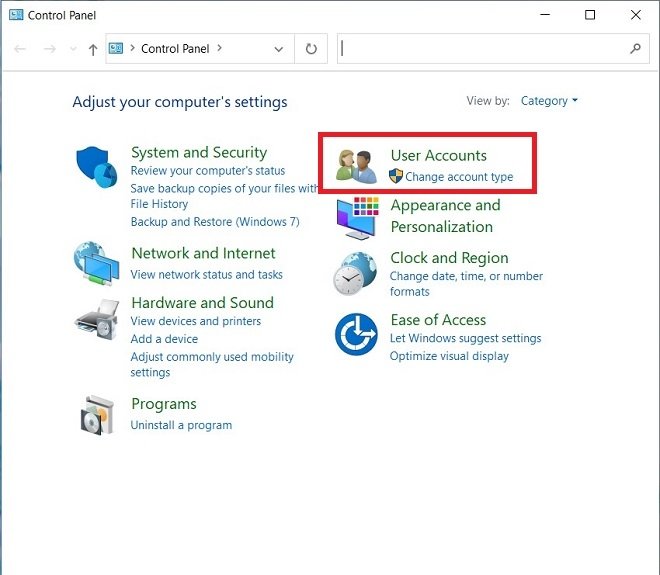 User accounts section
Select the Remove user accounts option.
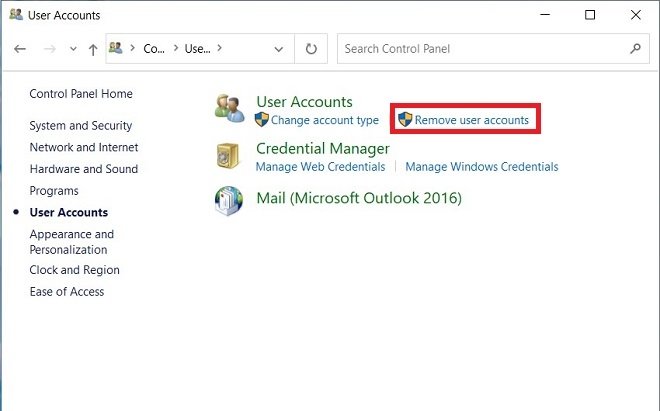 Remove user account
Choose the account you want to delete and click on it.
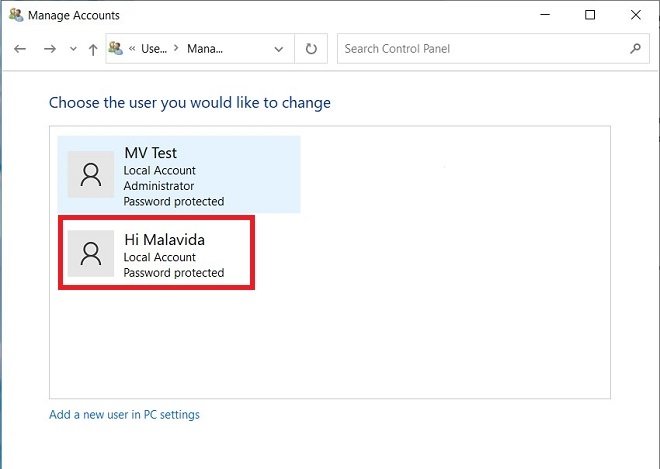 Select the account from the control panel
Click on the Delete the account option.
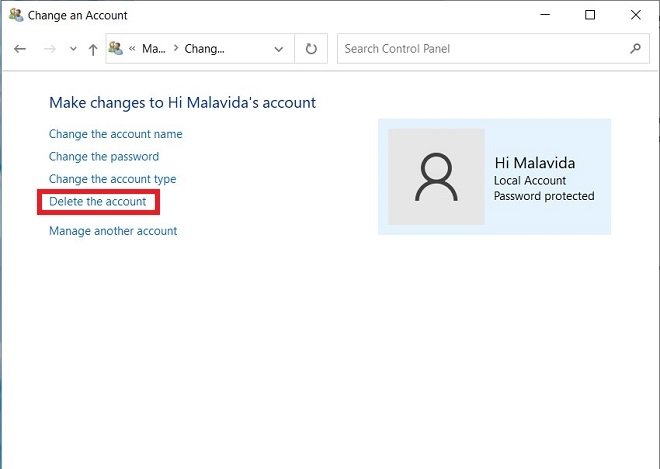 Remove the account from the control panel
In the next step, you can choose to either delete all the data for that user or keep it. Use Delete files to delete all your information and Keep files to save it. In the second case, your documents will be moved to your desk. Please, note that this does not include the configuration of installed applications, such as email accounts.
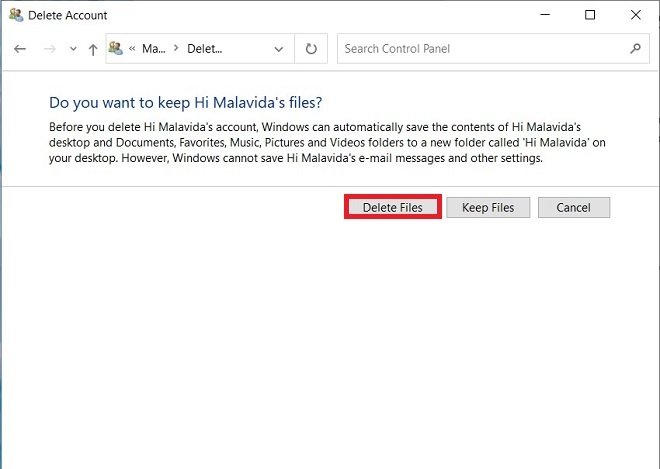 Keep the files
Confirm the account deletion with Delete account.
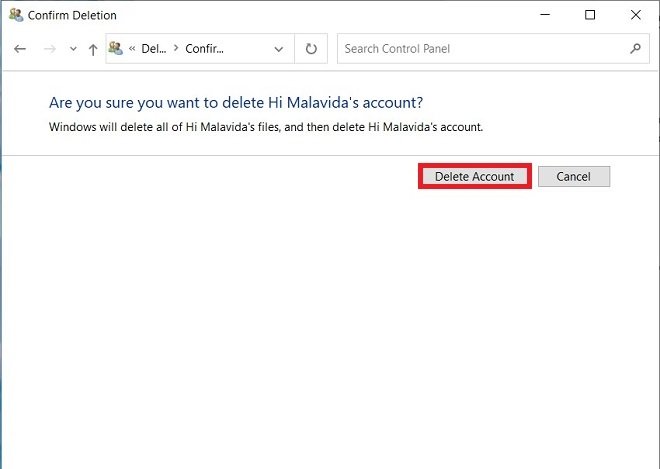 Confirm removal of the account
In its effort to make the control panel disappear, Microsoft is moving all these settings to the configuration application. The latter method is likely to become obsolete soon. Also, remember that to delete the user of another person, you must have administrator privileges.
